Documentation Index
Fetch the complete documentation index at: https://prismeai-legacy.mintlify.app/llms.txt
Use this file to discover all available pages before exploring further.
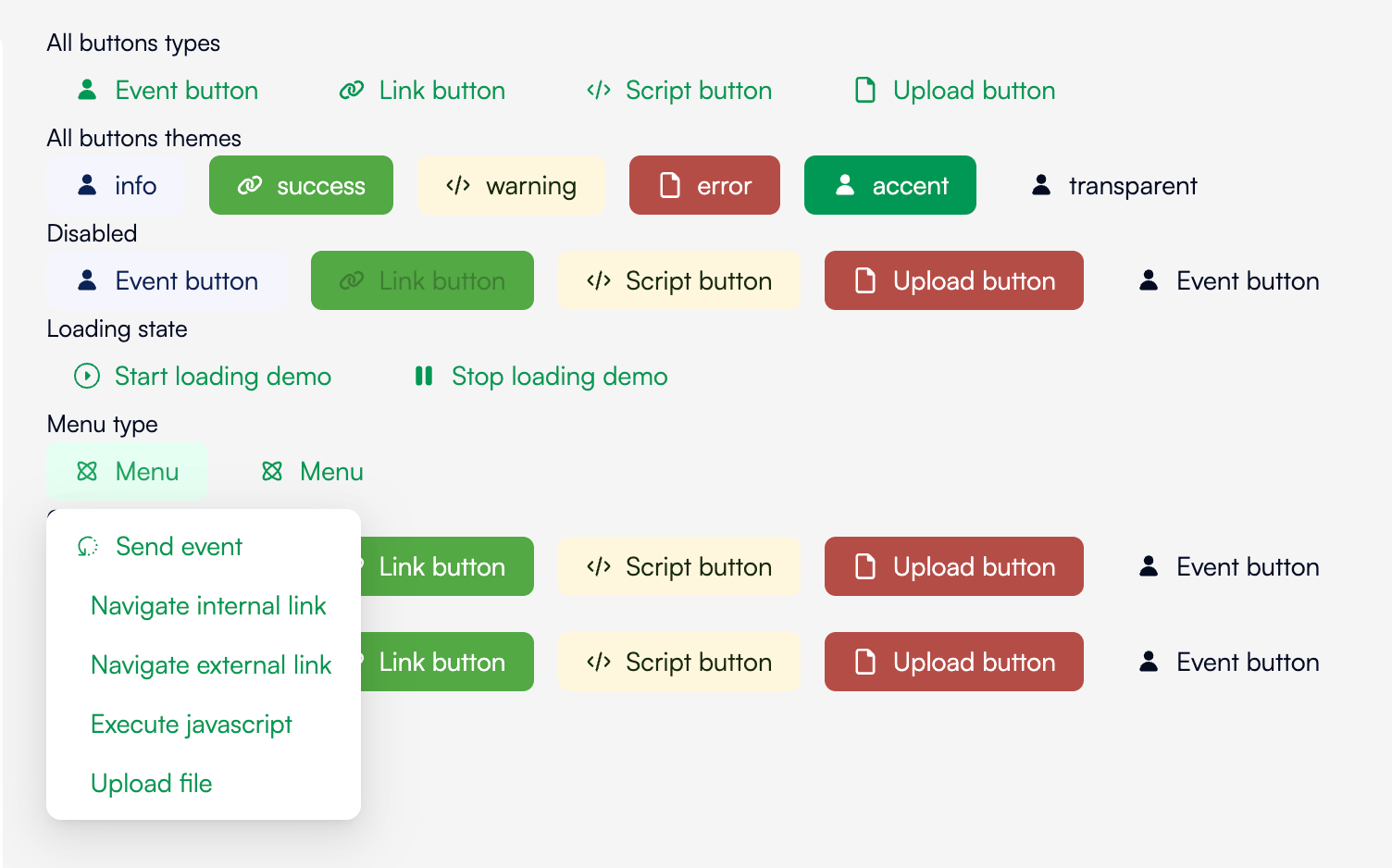
Demo
Minimal usage
# Page/Block
- slug: Button
content: Click me
type: event
value: has clicked
Display a button which emit an event on click.
theme changes the colors of the button.
# Page/Block
- slug: Button
content: Click me
theme: info
Available themes are :
default
info
success
error
warning
transparent
You can see all this options in the demo page.
You can obviously use css like any other block to make your very own style.
icon add an icon left to your content. Value can be an url to an image file or a icon name.
# Page/Block
- slug: Button
content: Click me
icon: gear
Demo
Advanced usage
content can ba a string, a localized string, or a blocks list:
# Page/Block
- slug: Button
content:
en: Click me
fr: Cliquez moi
# Page/Block
- slug: Button
content:
- slug: RichText
content: click **me**
type influences on the behavior of the button. Followings types are available:
event will emit the event set on value. value can be just a string or an object with event and payload.
# Page/Block
- slug: Button
type: event
value: clicked
- slug: Button
type: event
value:
event: clicked
payload:
with: foo
internal and external are just href links and will navigate to the link set on value``. valuecan be a single string or an object withhrefandpopup`.
# Page/Block
- slug: Button
type: internal
value: another-page
- slug: Button
type: internal
value:
href: another-page
popup: true # Open in a new window
script executes javascript set on value.
# Page/Block
- slug: Button
type: script
value: |-
console.log('it works')
upload opens a system file picker and emit the event set on value with the file url in payload. value can be a single string or an object like value of event type plus an accept attribute which allow to restrict the files types the user can select.
# Page/Block
- slug: Button
type: script
type: upload
value: upload file
- slug: Button
type: script
type: upload
value:
event: upload file
with: foo
- slug: Button
type: script
type: upload
value:
event: upload file
accept: image/*
menu displays a menu with a list of buttons. its value is an array of another buttons descriptions. A menu can contains another menu and so on.
# Page/Block
- slug: Button
content: Actions
type: menu
value:
- content: First action
type: event
value: clicked on first action
- content: second action
type: event
value: clicked on second action
- content: Other actions
type: menu
value:
- content: Upload something
type: upload
value: upload something
disabled set the button as disabled. Useless while a callback takes times. Example:
# Page/Block
- slug: Button
content: Click me
updateOn: update button
type: event
value: clicked
disabled: '{{loading}}'
# Automation
- emit:
event: udpate button
payload:
loading: true
- do something very long: {}
- emit:
event: udpate button
payload:
loading: false
loading replace or add an spinner icon to your button. Example:
# Page/Block
- slug: Button
content: Click me
updateOn: update button
type: event
value: clicked
loading: '{{loading}}'
# Automation
- emit:
event: udpate button
payload:
loading: true
- do something very long: {}
- emit:
event: udpate button
payload:
loading: false
You can mix it with disabled:
# Page/Block
- slug: Button
content: Click me
updateOn: update button
type: event
value: clicked
loading: '{{loading}}'
disabled: '{{loading}}'
confirm will ask a confirmation before trigger the action.
# Page/Block
- slug: Button
content: Click me
type: event
value: clicked
confirm:
title: Are you sure?
confirm object takes the following attributes:
title is title of the box displayed to the user. It can be a string or a localized string:
# Page/Block
- slug: Button
content: Click me
type: event
value: clicked
confirm:
title:
en: Are you sure?
fr: Êtes vous sur ?
label is the main text displayed to the user. It can be a string or a localized string:
# Page/Block
- slug: Button
content: Click me
type: event
value: clicked
confirm:
title: Are you sure?
label: All your work will be destroyed for ever.
yesLabel is the label of the confirm button:
# Page/Block
- slug: Button
content: Click me
type: event
value: clicked
confirm:
title: Are you sure?
label: All your work will be destroyed for ever.
yesLabel: Yes, destroy everything
noLabel is the label of the cancel button:
# Page/Block
- slug: Button
content: Click me
type: event
value: clicked
confirm:
title: Are you sure?
label: All your work will be destroyed for ever.
yesLabel: Yes, destroy everything
noLabel: No please, I've made a mistake
placement position the dropdown around the button. Default will adapt automaticall but you can force with:
- ‘top’
- ‘left’
- ‘right’
- ‘bottom’
- ‘topLeft’
- ‘topRight’
- ‘bottomLeft’
- ‘bottomRight’
- ‘leftTop’
- ‘leftBottom’
- ‘rightTop’
- ‘rightBottom’
# Page/Block
- slug: Button
content: Click me
type: event
value: clicked
confirm:
title: Are you sure?
label: All your work will be destroyed for ever.
yesLabel: Yes, destroy everything
noLabel: No please, I've made a mistake
placement: bottom
mode changes the way the box is displayed. Default is dropdown which display a dropdown around the button. modal displays the box over the screen as a dialog box.
# Page/Block
- slug: Button
content: Click me
type: event
value: clicked
confirm:
title: Are you sure?
label: All your work will be destroyed for ever.
yesLabel: Yes, destroy everything
noLabel: No please, I've made a mistake
mode: modal
Demo