

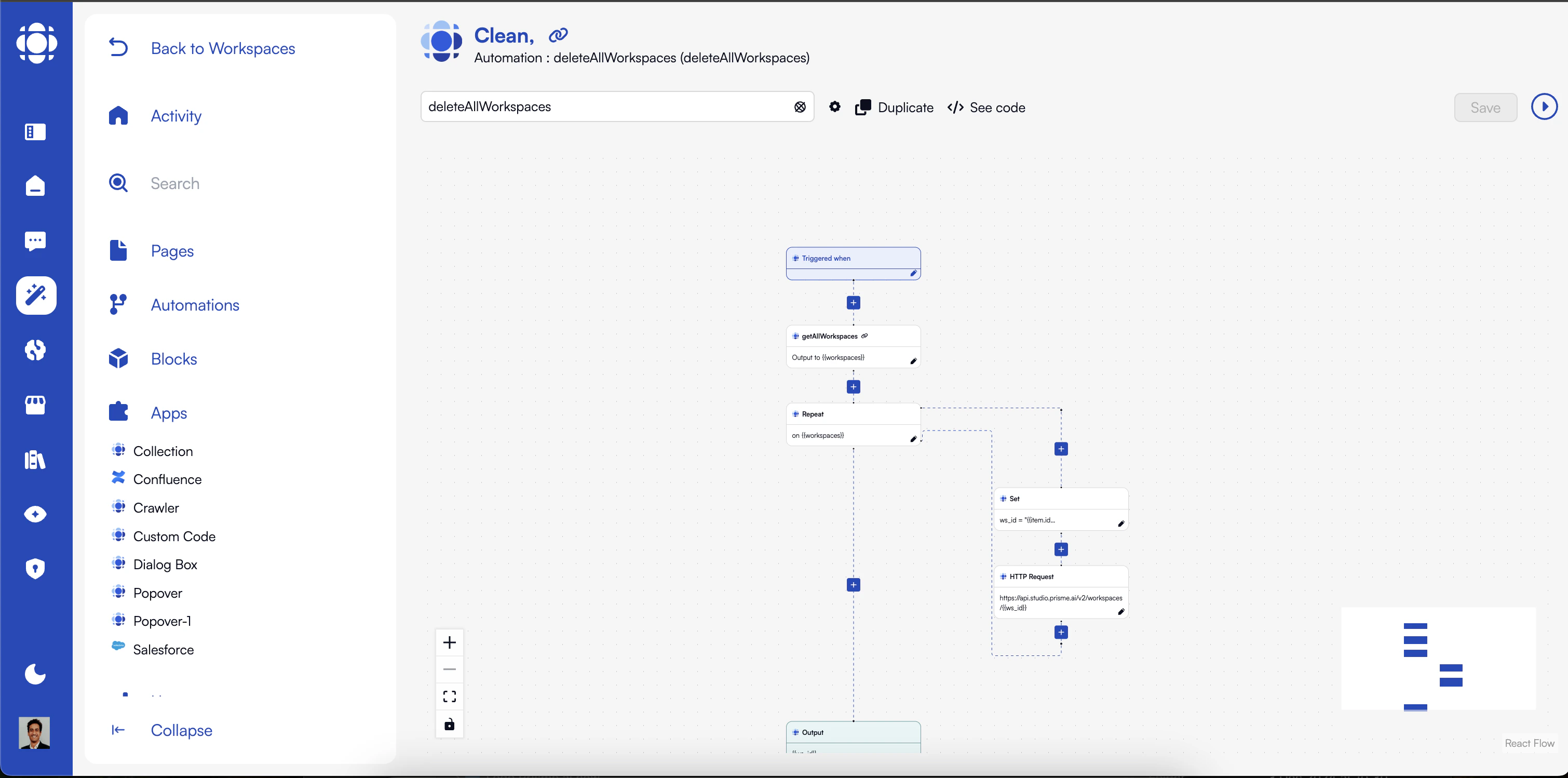
Understanding Automations
- What are Automations?
- Automation Architecture
In simple words, automations describe what to do and when:
- What to do: A sequence of instructions that process data and perform actions
- When to do it: Triggers that activate the automation when specific conditions are met
- The what would be a fetch instruction calling Slack API to send a message
- The when would be a URL (webhook) trigger that Hubspot calls whenever a new deal is opened
Triggers
Automations can be activated through different types of triggers, configured at the top of the automation graph:URL (Webhook/API Endpoint)
URL (Webhook/API Endpoint)
When an automation activates its URL trigger, it becomes publicly available through a URL which you can copy from your Workspace graph or source code. You can then use this URL in external services that support webhooks.From inside the automation, 5 variables give access to input HTTP requests:
Example :By default, these HTTP requests will receive the automation output as a response body. However, an $http variable available inside the automation gives full control over the response:You can also use this variable to implement Server-Sent Events (SSE) for streaming responses:For long-running SSE endpoints, you can configure a keep-alive to avoid timeouts:After this instruction, a When a request is made to Request to
- body: Request body
- headers: Request headers
- method: HTTP method (GET, POST, etc.)
- query: URL query parameters
- pathParams: Extracted path parameter values (when using path parameters like
:id)
body.<fileKey> object variable.Example :
- $http is only available in the URL-triggered automation (not in children calls)
- Headers cannot be set after the first chunk is sent
- When using SSE events, the automation output will also be sent as the last event
- SSE automatically sets appropriate headers (Content-Type, Cache-Control, Connection)
data: {"keepAlive": true} chunk will be regularly emitted until the connection ends.Path Parameters
Webhook endpoints support path parameters for building RESTful APIs. Path parameters allow you to define dynamic URL segments that extract values from incoming requests.Basic Usage:get-user
/webhooks/{workspaceSlug}/v1/users/123, the automation receives:pathParams.id="123"
get-user-post
/webhooks/{workspaceSlug}/v1/users/alice/posts/456 results in:pathParams.userId="alice"pathParams.postId="456"
update-user
Path Parameter Behavior:
- Parameters are defined using
:paramNamesyntax (e.g.,:id,:userId) - All defined parameters are required - requests missing parameters will not match
- Parameter values are automatically URL-decoded
- Exact match endpoints take priority over pattern endpoints
- When multiple patterns could match, the first defined pattern wins
- Patterns like
message:stream(colon without preceding slash) are treated as exact matches, not patterns
Events
Events
An automation can listen to a list of events. Whenever such events are received, the automation is executed and can access:
- payload: Event payload data
- source: Event source information (source IP, correlationId, userId, automation, etc.)
- Native events: Generated automatically by the platform
- Custom events: Emitted from automations in the same workspace
- App events: Emitted from installed Apps
Workspaces can only listen to a specific subset of native events. See the Supported Native Events section for details.
Schedules
Schedules
An automation can be regularly triggered based on cron expressions:A helpful tool for creating cron expressions is crontab.guru.
- Automations can be scheduled at most every 15 minutes
- Schedules use UTC timezone
- When scheduled, the automation runs “on the hour” (e.g., a 20-minute schedule starting at 3:14 will run at 3:20, 3:40, etc.)
- When successfully scheduled, a
runtime.automations.scheduledevent is emitted
Memory Architecture
Automations can use and modify data across different memory scopes:Run Scope
Run Scope
Available only during current execution
{{run.variable}}
Run variables include execution context like:run.date: Current timestamprun.ip: Client IP addressrun.automationSlug: Current automation identifierrun.correlationId: Unique ID for tracing related eventsrun.depth: Current automation depth in the stacktracerun.trigger.type: Trigger type (event, endpoint, automation)run.trigger.value: Trigger value (event name, endpoint path, etc.)run.socketId: Current socket ID if connected by websocketrun.appSlug: Current app slug if running from an appInstancerun.appInstanceSlug: Current appInstance slug if applicablerun.parentAppSlug: Parent app slug if parent is also an appInstance
User Scope
User Scope
Persistent for the authenticated user
{{user.variable}}User variables include:user.id: Unique user identifieruser.email: User’s email addressuser.authData: Authentication informationuser.role: User’s role in the workspace- Custom user-specific data that persists across sessions
Session Scope
Session Scope
Available for the current user session
{{session.variable}}Session variables include:session.id: Current session ID- Custom session data
- Form inputs across multiple steps
- Wizard progress state
- Temporary preferences
Global Scope
Global Scope
Shared across all users and executions
{{global.variable}}Global variables include:global.workspaceId: Current workspace IDglobal.workspaceName: Current workspace nameglobal.apiUrl: Current API instance public URLglobal.studioUrl: Current studio instance public URLglobal.pagesUrl: Current workspace pages public URLglobal.pagesHost: Current pages instance base domainglobal.endpoints: Map of available endpoint slugs to URLsglobal.workspacesRegistry: Map of public workspaces- Custom workspace-wide variables
Socket Scope
Socket Scope
Available for the current websocket connection
{{socket.variable}}Socket scope provides a temporary state local to a websocket connection, useful for separating state between multiple browser tabs. This context automatically expires after 6 hours without any updates.Config Scope
Config Scope
Workspace and app configuration
{{config.variable}}Contains the workspace configuration defined in the workspace settings.$workspace Scope
$workspace Scope
Read-only workspace information
{{$workspace.variable}}This read-only context holds the current workspace definition, allowing access to any of its sections (e.g., installed apps config via $workspace.imports.myApp.config).Except for $workspace, all these contexts can be written to using the
set instruction. Written data will be persisted and available in subsequent requests. However, when setting variables inside session/user contexts from an unauthenticated webhook, they will not be persisted.Working with Variables
Inside your automation instructions, dynamic data can be injected by surrounding a variable name with double braces:{{some.variable.name}}.
Variables can be created and modified using the set instruction and removed using the delete instruction.
For objects or arrays, you can access specific properties:
session.myObjectVariable equals {"mickey": "house"} and item.field equals mickey, the entire expression resolves to house.
Instructions
Once triggered, automations execute a sequence of instructions in order. Here are the available instructions:Logic Instructions
Condition
Condition
Conditionally execute instructions based on variable values or expressions.More details on condition syntax
Repeat
Repeat
Loop through items or execute instructions multiple times.You can also process batches in parallel:
Break
Break
Stop execution of the current automation or loop.When
break is meant to be handled from a parent automation’s try/catch, scope must be set to all.If using the instruction like this : - break: {}, it will default to scope: automation.All
All
Execute multiple operations in parallel.
Try/Catch
Try/Catch
Handle errors gracefully.The
$error variable is accessible both inside and outside the catch block.Data Instructions
Set Instruction
Set Instruction
Create or update variables in different scopes.Like everywhere else, you can also use expressions in the value parameter:
- Basics
- Objects
- Array
Delete Instruction
Delete Instruction
Remove variables when no longer needed.
Integration Instructions
Fetch Instruction
Fetch Instruction
Make HTTP requests to external APIs.
- Basics
- Output options
- multipart/form-data
- application/x-www-form-urlencoded
- HTTP SSE (Server Side Events)
- AWS SigV4
Emit Instruction
Emit Instruction
Trigger events for UI updates or other automations.
- Basics
- Target
- Options
Wait Instruction
Wait Instruction
Pause execution until a specific event is received.
Rate Limit Instruction
Rate Limit Instruction
Control resource usage with rate limiting.
Other Instructions
Auth Instruction
Auth Instruction
Generate authentication tokens for internal API calls.
This token cannot be used outside of automations, and is specifically intented for When fetching a Prismeai automation endpoint with such workspace token, a
You can also forward source workspace authentication to a subsequent fetch :
fetch consumption (as an Authorization header).{{run.authenticatedWorkspaceId}} variable (which cannot be manually set) will be made available to securely check calling workspace.You can also forward source workspace authentication to a subsequent fetch :
User Topic Instructions
User Topic Instructions
Manage user subscription topics.User topics allow sending events to multiple users without knowing who they are in advance, automatically granting them read access to these events without requiring any API Key.User topics allow sending events to multiple users without knowing who they are in advance.
Run instruction
Run is a generic instruction allowing you to call runtime modules.These are lightweight NodeJS packages offering various methods for use cases needing raw Javascript for better performances than standard automations. Example :
- module : Module name
- function : Function name
- parameters : Function parameters object
- onError : Exception handling behaviour
breakwill break current automation with given exception (default)emitwill emit an error event but continue current automationcontinuewill only return the error and continue current automation
Collections
Store, query, and manage structured data with MongoDB-style queries. This module is generally meant to be used through the Collection application.Collections Module Reference
Functions:
create, findMany, updateOne, deleteOne, aggregate, and moreSecrets
Securely store and retrieve sensitive values (API keys, tokens, credentials) at runtime, with automatic redaction from logs.Secrets Module Reference
Functions:
set, get, delete — scopes: workspace, userAccess Manager
Manage organization service account tokens at runtime with in-memory secret caching and event-driven invalidation.Access Manager Module Reference
Functions:
getServiceAccountToken, createServiceAccount, rotateServiceAccountSecret, deleteServiceAccountText
Pure-JS text processing utilities for splitting text into chunks with configurable separators and overlap.Text Module Reference
Functions:
splitTextCondition and Expression syntax
Conditions allow you to execute different instructions based on contextual information. You can use a powerful expression syntax in conditions and anywhere with{% ... %} delimiters.
Basic Operators
Logical Operators
Regular Expressions
MongoDB-like Conditional Matches
Deep merge objects
This functiun helps deep merge two objects.Date Functions
Parsing and Access
Formatting
Math Functions
Operators
Functions
String Functions
URL parsing
Parse URL search params :Arguments
When calling a native instruction or another automation, different arguments can be transmitted. These graphical inputs are not reserved to native instructions, but can also be configured for your own custom automations by specifying expected arguments and their types.someToken argument defined with secret: true is automatically redacted from native runtime events to avoid accidental leaks of sensitive information.
Arguments Validation
Automation arguments can be validated during execution by enablingvalidateArguments: true:
Advanced Automation Patterns
- Webhook Handling
- Data Processing Pipeline
- Multi-LLM Orchestration
Implement secure webhook endpoints for third-party integrations:
Supported Native Events
Workspaces can listen to a specific subset of native events:Workspace Events
Workspace Events
App Events
App Events
Automation Events
Automation Events
Runtime Events
Runtime Events
Best Practices
Modular Design
Modular Design
Create maintainable automation structures:
- Break complex flows into smaller automationsUse events for communication between modulesCreate reusable patterns for common tasksDocument automation purposes and interfaces
Error Handling
Error Handling
Build robust fault tolerance:
- Use try/catch blocks for risky operationsImplement appropriate retry strategiesProvide informative error messagesCreate fallback paths for critical operations
State Management
State Management
Handle data appropriately across scopes:
- Use appropriate memory scopes for different data needsClean up temporary variables when finishedInitialize variables before using themBe mindful of persistence requirements
Security Best Practices
Security Best Practices
Keep your automations secure:
- Store sensitive data in secretsValidate inputs from external sourcesImplement rate limiting for external APIsUse proper authentication for API calls
Performance Optimization
Performance Optimization
Ensure efficient execution:
- Use parallel processing for independent operationsImplement batching for large data setsCache results when appropriateMonitor execution times and optimize bottlenecks
Testing
Testing
Validate automation functionality:
- Test with representative data samplesVerify error handling pathsTest edge cases and unexpected inputsUse Activity view to review execution history
Next Steps
Blocks
Blocks
Learn about UI components that trigger automations
Pages
Pages
Discover how to create interfaces for your applications
Deployment
Deployment
Learn more about deployment strategies