> ## Documentation Index
> Fetch the complete documentation index at: https://prismeai-legacy.mintlify.site/llms.txt
> Use this file to discover all available pages before exploring further.
# Configuring Helper Agents
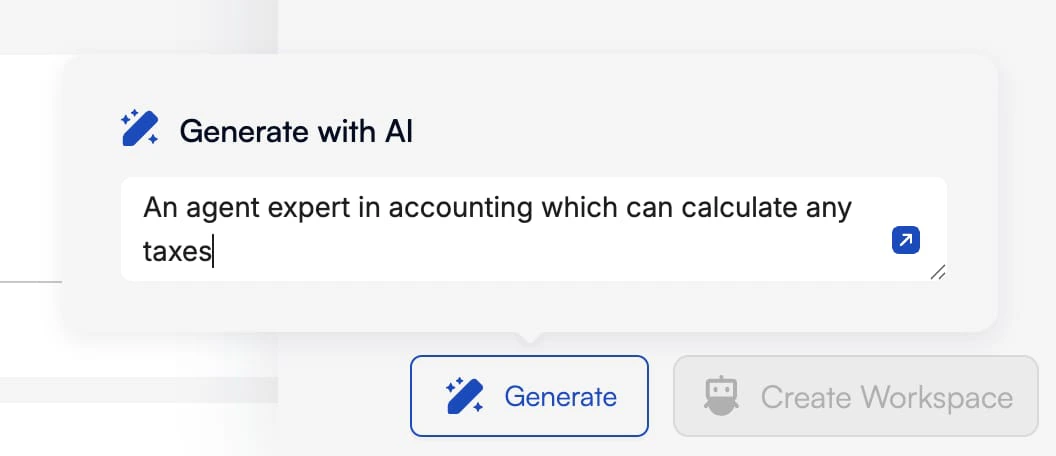
> Each product have helpers to help users filling forms with gen AI.
 ## Installation
### Environment Variable
Before configuring helper agents, you must define the `HELPER_AGENT_ENDPOINT` environment variable on your instance. This URL should point to the `query` automation endpoint of the **Helper Agents** workspace:
```bash theme={null}
HELPER_AGENT_ENDPOINT="https://api.studio.prisme.ai/v2/workspaces/XXXXXX/webhooks/query"
```
Replace `XXXXXX` with your actual Helper Agents workspace ID.
### Workspace Setup
You should find a Workspace named **Helper Agents**. From **AI Builder**, enter into it.
In Automations list, there is a folder named `00_InitAgents` with an
automation for each product. Each will create and update an AI Knowledge agent
which will have role to help the product. Run each one. You now have as many as
new agents in AI Knowledge home.
After initialization, make sure each agent is configured with a model that is available on your instance. If no image model is available, images will not be generated.
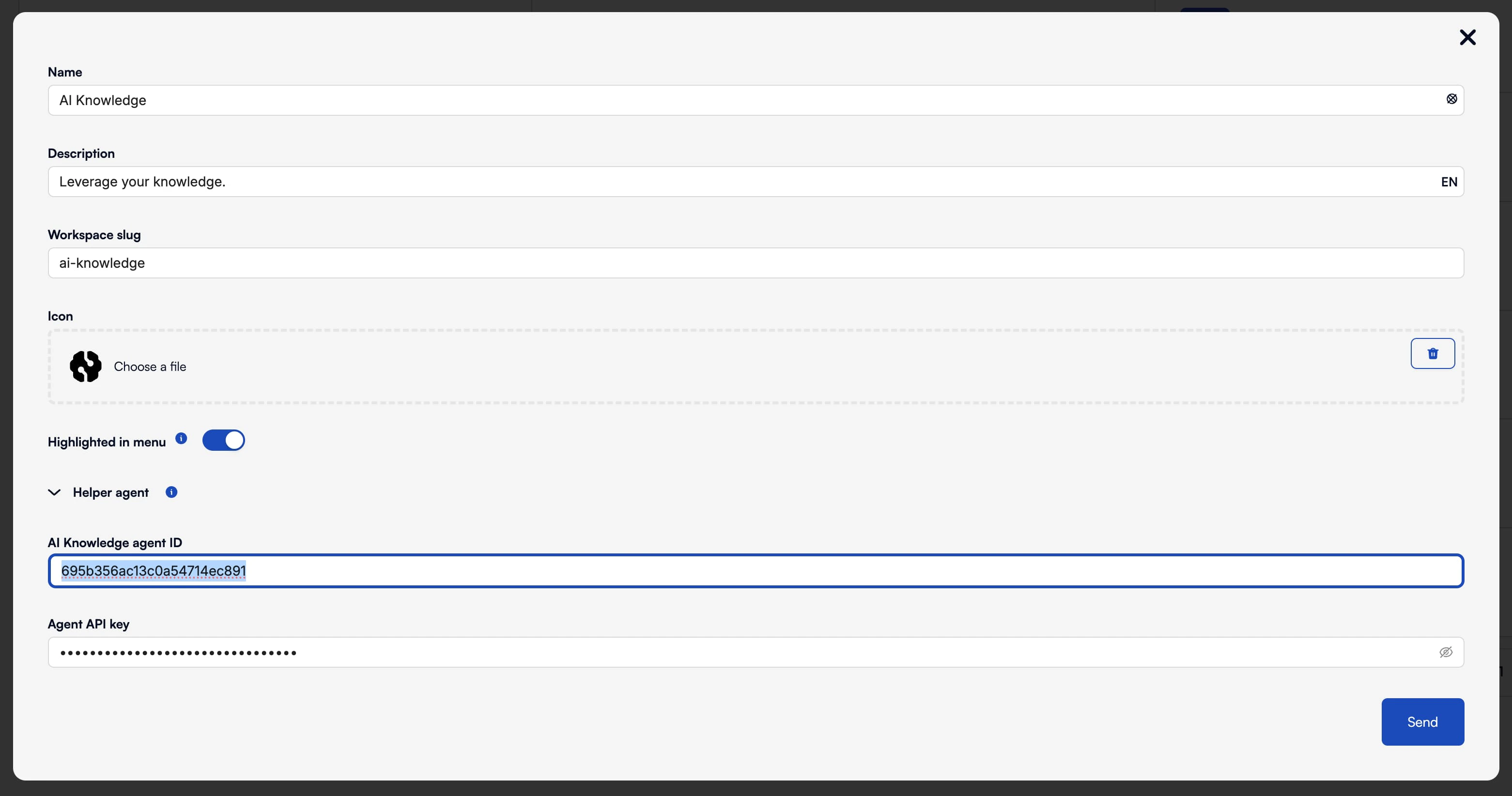
Then, you will have to configure each products in AI Governance. The automation
`Generate AI Governance config` from **Helper Agents** Workspace will give to you
the raw configuration for AI Governance. You can go to the products section
(STUDIO/en/product/ops-manager/products), edit each product and add the
corresponding ID and API Key from the previous automation.
## Installation
### Environment Variable
Before configuring helper agents, you must define the `HELPER_AGENT_ENDPOINT` environment variable on your instance. This URL should point to the `query` automation endpoint of the **Helper Agents** workspace:
```bash theme={null}
HELPER_AGENT_ENDPOINT="https://api.studio.prisme.ai/v2/workspaces/XXXXXX/webhooks/query"
```
Replace `XXXXXX` with your actual Helper Agents workspace ID.
### Workspace Setup
You should find a Workspace named **Helper Agents**. From **AI Builder**, enter into it.
In Automations list, there is a folder named `00_InitAgents` with an
automation for each product. Each will create and update an AI Knowledge agent
which will have role to help the product. Run each one. You now have as many as
new agents in AI Knowledge home.
After initialization, make sure each agent is configured with a model that is available on your instance. If no image model is available, images will not be generated.
Then, you will have to configure each products in AI Governance. The automation
`Generate AI Governance config` from **Helper Agents** Workspace will give to you
the raw configuration for AI Governance. You can go to the products section
(STUDIO/en/product/ops-manager/products), edit each product and add the
corresponding ID and API Key from the previous automation.
 Alternatively, You can edit the workspace in settings, and paste the object in
the config value.
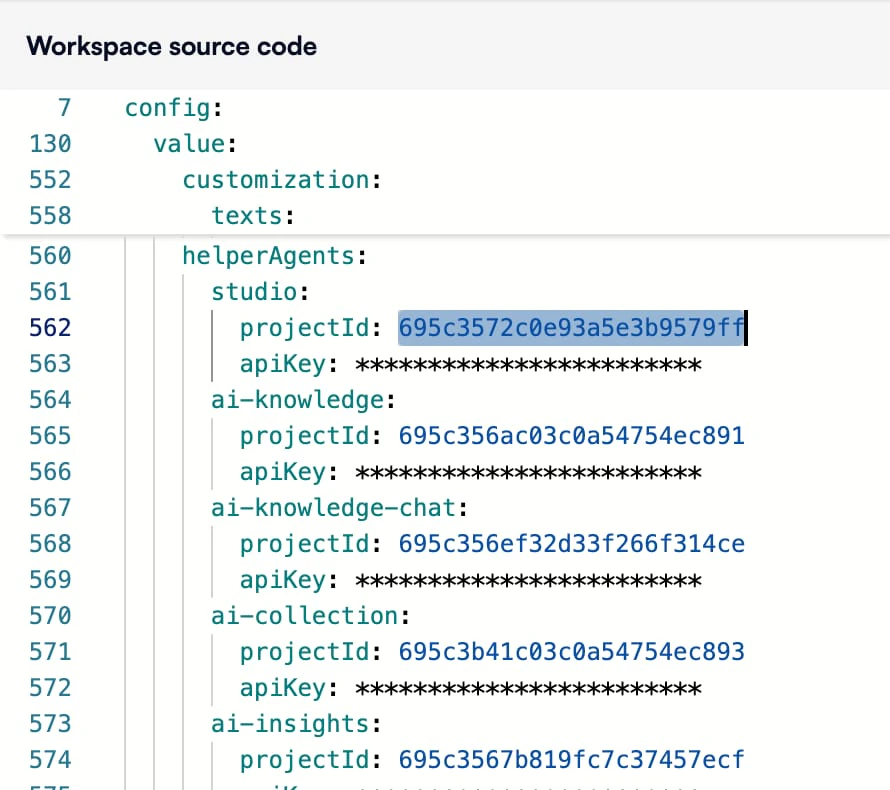
For AI Builder, the helper agent credentials cannot be configured from the UI. You must add them manually in code view, below the existing credentials, see the first lines (561) from the next picture below.
Alternatively, You can edit the workspace in settings, and paste the object in
the config value.
For AI Builder, the helper agent credentials cannot be configured from the UI. You must add them manually in code view, below the existing credentials, see the first lines (561) from the next picture below.
 Congratulations, your products are ready to work with their helpers!
## Update
After each upgrade, it is possible you will need to upgrade this helper agents
by running again all the init automations.
## Customization
These agents are optimized for the more common LLM. Maybe they works bad in your
environment and you want to customize yours. Just create a new agent in
AI Knowledge, and edit it like you want. You can duplicate **Helper Agents**
Workspace to start with a working template. Finally, just change the id/apikey
in AI Governance like in Installation section.
Congratulations, your products are ready to work with their helpers!
## Update
After each upgrade, it is possible you will need to upgrade this helper agents
by running again all the init automations.
## Customization
These agents are optimized for the more common LLM. Maybe they works bad in your
environment and you want to customize yours. Just create a new agent in
AI Knowledge, and edit it like you want. You can duplicate **Helper Agents**
Workspace to start with a working template. Finally, just change the id/apikey
in AI Governance like in Installation section.