> ## Documentation Index
> Fetch the complete documentation index at: https://prismeai-legacy.mintlify.site/llms.txt
> Use this file to discover all available pages before exploring further.
# Configuring AI Store
> Configure and customize the AI Store module in your self-hosted Prisme.ai instance.
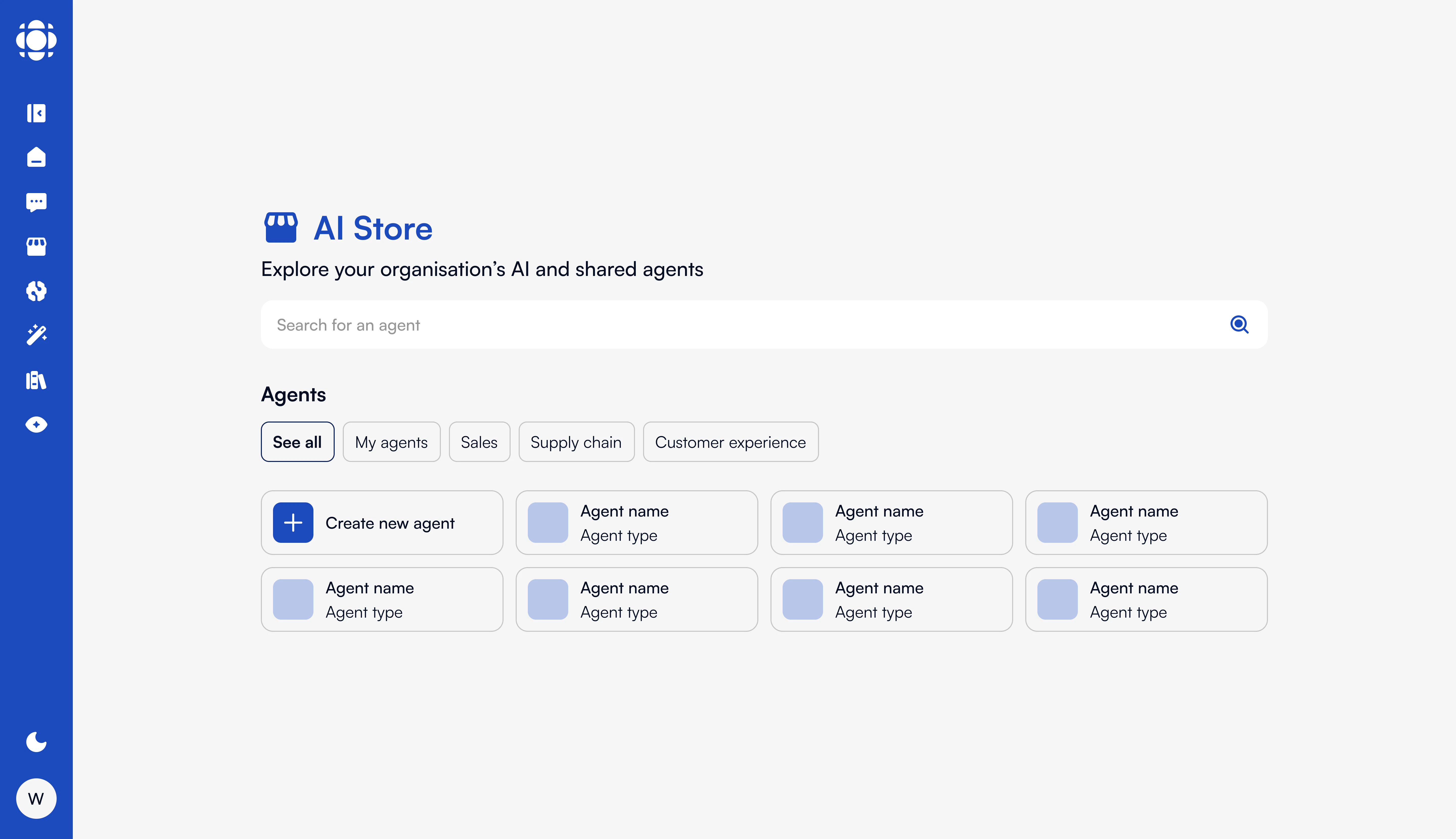 AI Store is the main entry point for users to access, explore, and interact with AI agents. It serves as a workspace-centric product where users can chat, select models, collaborate with AI using Prisme.ai Canvas, and manage their AI experience.
This page explains how to configure AI Store in a self-hosted setup, including onboarding, theming, privacy controls, and customization of behavior per user profile.
***
## Global Configuration Schema
The onboarding experience can be customized in HTML with localized messages, and configured to show:
* **Once per session** (default for most)
* **Always** (e.g., for new user education)
```yaml theme={null}
onBoardingPolicy: always
onBoarding:
en: "
AI Store is the main entry point for users to access, explore, and interact with AI agents. It serves as a workspace-centric product where users can chat, select models, collaborate with AI using Prisme.ai Canvas, and manage their AI experience.
This page explains how to configure AI Store in a self-hosted setup, including onboarding, theming, privacy controls, and customization of behavior per user profile.
***
## Global Configuration Schema
The onboarding experience can be customized in HTML with localized messages, and configured to show:
* **Once per session** (default for most)
* **Always** (e.g., for new user education)
```yaml theme={null}
onBoardingPolicy: always
onBoarding:
en: "Welcome to AI Store
..."
fr: "Bienvenue sur AI Store
..."
```
AI Store supports full UI theming. You can override colors using CSS variables under `themes.light.variables` and `themes.dark.variables`.
Example:
```yaml theme={null}
themes:
light:
variables:
primary: '#015dff'
layout-surface: '#ffffff'
dark:
variables:
main-text: '#f8faff'
layout-surface: '#212121'
```
AI Store visibility is governed by the workspace’s **RBAC rules**. SecureChat agents within AI Store can be:
* **Public** to the entire instance
* **Scoped** to specific groups or SSI-based entities
* **Manually assigned** per role or via automation
Beta testers can be whitelisted via email for early access:
```yaml theme={null}
betaTesters: 'alice@company.com,bob@company.com'
```
You can define custom links to T\&C and privacy policies:
```yaml theme={null}
links:
cgu: https://www.prisme.ai/en/mentions-legales
policy: https://www.prisme.ai/en/politique-de-confidentialite
```
These are displayed at the bottom of the AI Store interface.
Input guidance can be localized and shown above the message input:
```yaml theme={null}
inputGuidanceMessage:
en: "This agent can make mistakes. Check important info."
fr: "Cet agent peut faire des erreurs. Vérifiez les informations importantes."
```
***
## Canvas Custom Actions
AI Store integrates tightly with **Canvas**, allowing agents to process rich structured content. You can configure default AI behaviors for canvas interactions:
```yaml theme={null}
canvas:
actionsPrompt:
translate:
default: Translate the canvas document to [value].
improve:
default: Polish the canvas content. Improve clarity, style, and format.
debug:
default: Help debug the canvas code.
```
These prompts are displayed as button suggestions and passed to the LLM agent to guide interaction.
***
## Upload & Retention Settings
Files uploaded via AI Store (for context or RAG) are retained for a configurable duration:
```yaml theme={null}
uploadDuration: 86400 # in seconds (24h default)
```
This value can be adapted per workspace or globally depending on your document handling policies.
***
## Agent Creation
AI Store can contain multiple agents, each with:
* Unique names, descriptions, prompts, and categories
* Access rules and visibility constraints
* Tools and document collection bindings
* Monitoring and usage tracking
Agents can be created:
* **Manually** via AI Store for basic configuration and AI Knowledge for advanced settings.
* **Automatically** via AI Builder workflows
* **Imported** from other environments (e.g. DEV → PROD) using CI/CD and Prisme.ai APIs
***
## Monitoring & Analytics
All agent usage within AI Store is traceable via:
* **Workspace activity logs on AI Builder**
* **Analytics on AI Knowledge**
* **Centralized OpenSearch/ElasticSearch**
* **Feedback collection** (thumbs up/down and comments)
* **Metrics via Prometheus** (e.g., avg. response time)
***
## Example Integration in `index.yaml` of AI Store workspace on AI Builder
```yaml theme={null}
aiStore:
enabled: true
onboarding:
policy: always
html: "Welcome to AI Store
..."
inputGuidanceMessage:
fr: "Cet agent peut faire des erreurs. Vérifiez les informations importantes."
en: "This agent can make mistakes. Check important info."
links:
cgu: https://www.prisme.ai/en/mentions-legales
policy: https://www.prisme.ai/en/politique-de-confidentialite
betaTesters: "alice@company.com,bob@company.com"
uploadDuration: 86400
```
***
## Next Steps
Configure document-based agents and RAG
Add chat agents to AI Store
Track usage and agent activity in real-time
Learn more about agent creation