> ## Documentation Index
> Fetch the complete documentation index at: https://prismeai-legacy.mintlify.site/llms.txt
> Use this file to discover all available pages before exploring further.
# Creating a SecureChat Agent
> Learn how to configure and manage a SecureChat agent in Prisme.ai using AI Store, AI Knowledge or AI Builder.
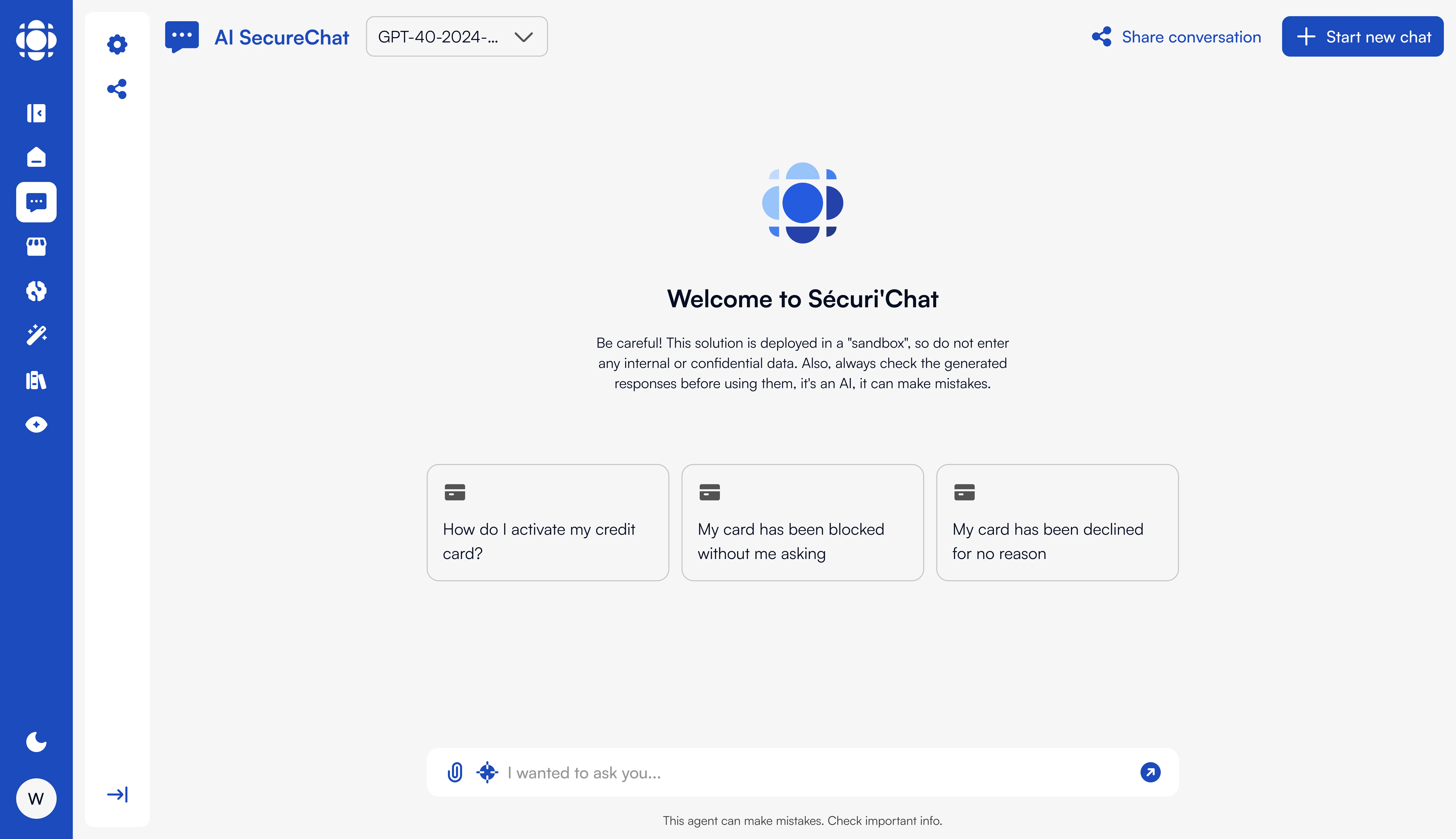 # Creating a SecureChat Agent
SecureChat is not a standalone product, but a **type of intelligent agent** that can be created and configured within Prisme.ai, using either **AI Store** or **AI Knowledge**, depending on the user's permissions and organizational context.
It offers a secure, AI-powered conversational experience that can be **public** to the instance or **scoped** to a specific entity, based on access rules and SSI (Security & Information Systems) configurations.
***
## Creation Options
You can create a SecureChat agent using one of the following methods:
Users with sufficient permissions can create SecureChat agents manually through the platform UI:
* Navigate to **AI Store** (for general-purpose assistants)
* Or go to **AI Knowledge > Agents** (for knowledge-centric assistants)
* Set visibility (`public`, `group-limited` on Users tab, etc.)
* Define agent prompt, tools, documents, and runtime settings
Use automation to define and deploy agents across environments:
Example workflow:
```yaml theme={null}
slug: create-agent-securechat
name: Create agent SecureChat
do:
- set:
name: agents
value:
- name: SecureChat
category: Productivity
public: true
description: Your AI-powered professional assistant for daily work tasks.
ai:
max_tokens: 1500
prompt: |
You are a virtual assistant designed to support employees in their daily professional tasks...
- repeat:
on: '{{agents}}'
do:
- Knowledge Client.Projects - Update or Create project:
data: '{{item}}'
```
This ensures traceability and multi-environment management.
***
## Agent Capabilities
A SecureChat agent typically supports:
* **Summarization** of documents and meeting notes
* **Comparison** between files or texts
* **Rephrasing** and rewriting content
* **Drafting** emails, notes, or reports
* **Web search** (if enabled) with source citations
* **Secure document handling** with contextual processing
Each response type is designed with formatting standards and structured output (e.g., tables, bullets, or paragraph summaries).
***
## Configuration Options
* Set `public: true` to make the agent visible to all users.
* Or `public: false` and then assign access by **group**, **entity**, or **workspace role** using an automation on AI Builder
* Connect to multiple LLMs (OpenAI, Mistral, Claude, Ollama…)
* Define a prompt depending on use case to define tone, role, behavior
***
## Optional Tools & Webhooks
Agents can include tools and hooks to enhance capabilities:
Add tools to your SecureChat agent:
* Web browsing
* Code Interpreter
* Image Generation
* Custom tools
Use webhooks for:
* Pre-processing messages before LLM call
* Validating user input or controlling access
* Scanning and classifying uploaded documents
* ...
***
## Monitoring Agent Activity
You can monitor the SecureChat agent’s activity through:
* The **Activity** tab inside the agent’s workspace (AI Knowledge)
* The **AI Builder interface**, if the agent was deployed via automation
* Optionally, activity logs can be streamed to **ElasticSearch/OpenSearch**
Tracked events include:
* Agent usage
* Chat events
* Feedback collection
* RAG/document interaction logs
***
## Next Steps
Learn how to manage and deploy agents in the Store
Organize collections and document-based agents
Track usage and agent activity in real-time
Learn more about agent creation
# Creating a SecureChat Agent
SecureChat is not a standalone product, but a **type of intelligent agent** that can be created and configured within Prisme.ai, using either **AI Store** or **AI Knowledge**, depending on the user's permissions and organizational context.
It offers a secure, AI-powered conversational experience that can be **public** to the instance or **scoped** to a specific entity, based on access rules and SSI (Security & Information Systems) configurations.
***
## Creation Options
You can create a SecureChat agent using one of the following methods:
Users with sufficient permissions can create SecureChat agents manually through the platform UI:
* Navigate to **AI Store** (for general-purpose assistants)
* Or go to **AI Knowledge > Agents** (for knowledge-centric assistants)
* Set visibility (`public`, `group-limited` on Users tab, etc.)
* Define agent prompt, tools, documents, and runtime settings
Use automation to define and deploy agents across environments:
Example workflow:
```yaml theme={null}
slug: create-agent-securechat
name: Create agent SecureChat
do:
- set:
name: agents
value:
- name: SecureChat
category: Productivity
public: true
description: Your AI-powered professional assistant for daily work tasks.
ai:
max_tokens: 1500
prompt: |
You are a virtual assistant designed to support employees in their daily professional tasks...
- repeat:
on: '{{agents}}'
do:
- Knowledge Client.Projects - Update or Create project:
data: '{{item}}'
```
This ensures traceability and multi-environment management.
***
## Agent Capabilities
A SecureChat agent typically supports:
* **Summarization** of documents and meeting notes
* **Comparison** between files or texts
* **Rephrasing** and rewriting content
* **Drafting** emails, notes, or reports
* **Web search** (if enabled) with source citations
* **Secure document handling** with contextual processing
Each response type is designed with formatting standards and structured output (e.g., tables, bullets, or paragraph summaries).
***
## Configuration Options
* Set `public: true` to make the agent visible to all users.
* Or `public: false` and then assign access by **group**, **entity**, or **workspace role** using an automation on AI Builder
* Connect to multiple LLMs (OpenAI, Mistral, Claude, Ollama…)
* Define a prompt depending on use case to define tone, role, behavior
***
## Optional Tools & Webhooks
Agents can include tools and hooks to enhance capabilities:
Add tools to your SecureChat agent:
* Web browsing
* Code Interpreter
* Image Generation
* Custom tools
Use webhooks for:
* Pre-processing messages before LLM call
* Validating user input or controlling access
* Scanning and classifying uploaded documents
* ...
***
## Monitoring Agent Activity
You can monitor the SecureChat agent’s activity through:
* The **Activity** tab inside the agent’s workspace (AI Knowledge)
* The **AI Builder interface**, if the agent was deployed via automation
* Optionally, activity logs can be streamed to **ElasticSearch/OpenSearch**
Tracked events include:
* Agent usage
* Chat events
* Feedback collection
* RAG/document interaction logs
***
## Next Steps
Learn how to manage and deploy agents in the Store
Organize collections and document-based agents
Track usage and agent activity in real-time
Learn more about agent creation