> ## Documentation Index
> Fetch the complete documentation index at: https://prismeai-legacy.mintlify.site/llms.txt
> Use this file to discover all available pages before exploring further.
# Sharing Agents
> Learn how to share and distribute your AI agents with colleagues and across your organization
One of the key benefits of the AI Store is the ability to share specialized agents with colleagues, teams, or your entire organization. This guide covers how to effectively share agents, manage access, and integrate them into various platforms.
## Sharing Benefits
Multiply the impact of expertise by making specialized agents widely available
Enable teams to benefit from and build upon each other's work
Ensure consistent AI usage and responses across your organization
Reduce duplicate work by sharing solutions widely
Inspire others to adapt and enhance your agents
Showcase your expertise and contributions
## Sharing Options Overview
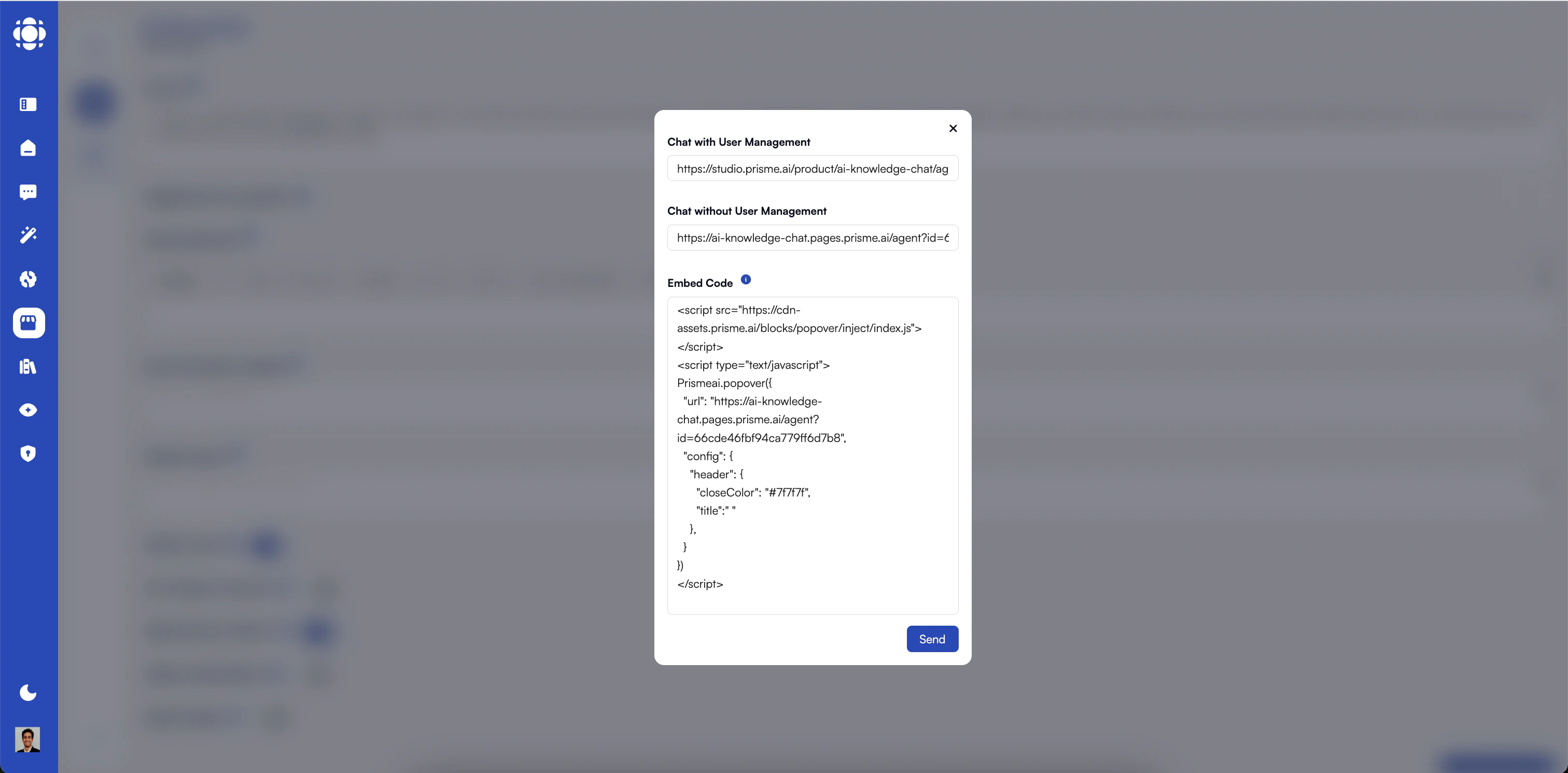 Prisme.ai offers multiple ways to share agents:
Share directly with specific individuals in your organization:
* Target precise recipients
* Control access levels for each person
Depending on your role, share with defined groups or departments:
* Reach entire teams at once
* Maintain access as team membership changes
* Set uniform permissions for the group
* Manage access at the group level
Available in AI Store to simplify distribution. Other sharing modes are available in AI Knowledge & Teams.
Create direct links to your agent:
* Generate URLs for easy distribution
* Share via email, chat, or documents
Make your agent discoverable in the AI Store:
* Anyone in your organization can find it
* Appears in search and browsing
* Features in relevant categories
Available in AI Store for straightforward use. Advanced options available via AI Knowledge > Teams.
Integrate your agent into other applications:
* Add to internal websites
* Embed in portals or wikis
* Create in-page experiences
### Restrict sharing
The instance can be configured to allow or prevent agents to be shared. In the AI Knowledge configuration, the key `limits.share` can be set to `false` to prevent anyone from sharing an agent.\
If this is setup this way, each agent can individually be set to "can be shared" from its `administration` view, by an AI Knowledge Admin.
## Sharing with Specific Users
From your agent's details page, click the "Share" button.
Enter the email addresses of colleagues (if they have a valid account on your Prisme.ai instance).
Choose what level of access each recipient should have:
* **User**: Can use the agent
* **Editor**: Can use and customize
* **Owner**: Full control
Click "Share" to send the invitation (requires email notification to be configured by your admin).
## Sharing with Groups
In the sharing dialog, switch to the "Groups" tab.
Choose relevant teams, departments, or custom groups.
Permissions apply to all members (current and future).
Choose whether group members should receive notifications (based on admin settings).
Click "Share" to complete.
## Creating and Sharing Links
In the sharing dialog, select the "Link" tab.
Distribute via email, chat, or documentation.
## Making Agents Public in Your Organization
Toggle "List in AI Store" in the sharing settings.
Add metadata to help others find your agent.
Click "Publish" to finalize.
## Embedding Agents in Other Applications
From your agent's detail page, select "Embed" from the menu.
Customize the interface: format, branding, and features.
Click "Generate Code" to create your snippet.
Add the snippet to your site or app.
```html theme={null}
```
## Embedding Display Modes
Full-featured chat interface in a container
Floating button that expands on click
Embed responses directly in content
Agent appears in a modal
Persistent panel alongside content
Full-page assistant experience
## Managing Shared Agents
Go to the agent’s detail page and select "Users."
View all users and groups with access.
Adjust access levels as needed.
Remove access for users or groups.
View interaction and performance data.
## Visibility and Access Control
| Sharing Method | Store Visibility | Who Can Access | Discovery Method |
| -------------------- | ---------------- | ---------------------- | ------------------------- |
| Private (no sharing) | Not listed | Creator only | "My Agents" |
| Direct user sharing | Not listed | Specific users | "Shared with Me" |
| Group sharing | Not listed | Members of groups | "Shared with Me" |
| Link sharing | Not listed | Anyone with the link | Direct link |
| Public (listed) | Listed | All organization users | Store browsing & search |
| Embedded | Varies | Host application users | Within the host interface |
## Collaboration Features
Collect structured feedback:
* Enable ratings
* Capture improvement ideas
* Identify knowledge gaps
Allow trusted colleagues to edit agents:
* Grant edit permissions
* Owners can also delete the agent
## Best Practices for Sharing
Explain agent purpose and how to use it
Focus sharing on relevant audiences
Set access levels appropriately
Improve agents based on usage
Track usage to identify opportunities
Collect and apply user suggestions
## Troubleshooting Sharing Issues
* Confirm user account and email
* Check group or link settings
* Ensure permissions are correctly applied
* Verify agent is active and not deleted
* Confirm embed code is implemented correctly
* Check browser console for errors
* Validate authentication and CORS settings
* Review permission hierarchy and org policies
* Ensure changes are saved and propagated
## Next Steps
Learn how to maintain and update your agents
Tailor existing agents to your needs
Build new agents from scratch
Prisme.ai offers multiple ways to share agents:
Share directly with specific individuals in your organization:
* Target precise recipients
* Control access levels for each person
Depending on your role, share with defined groups or departments:
* Reach entire teams at once
* Maintain access as team membership changes
* Set uniform permissions for the group
* Manage access at the group level
Available in AI Store to simplify distribution. Other sharing modes are available in AI Knowledge & Teams.
Create direct links to your agent:
* Generate URLs for easy distribution
* Share via email, chat, or documents
Make your agent discoverable in the AI Store:
* Anyone in your organization can find it
* Appears in search and browsing
* Features in relevant categories
Available in AI Store for straightforward use. Advanced options available via AI Knowledge > Teams.
Integrate your agent into other applications:
* Add to internal websites
* Embed in portals or wikis
* Create in-page experiences
### Restrict sharing
The instance can be configured to allow or prevent agents to be shared. In the AI Knowledge configuration, the key `limits.share` can be set to `false` to prevent anyone from sharing an agent.\
If this is setup this way, each agent can individually be set to "can be shared" from its `administration` view, by an AI Knowledge Admin.
## Sharing with Specific Users
From your agent's details page, click the "Share" button.
Enter the email addresses of colleagues (if they have a valid account on your Prisme.ai instance).
Choose what level of access each recipient should have:
* **User**: Can use the agent
* **Editor**: Can use and customize
* **Owner**: Full control
Click "Share" to send the invitation (requires email notification to be configured by your admin).
## Sharing with Groups
In the sharing dialog, switch to the "Groups" tab.
Choose relevant teams, departments, or custom groups.
Permissions apply to all members (current and future).
Choose whether group members should receive notifications (based on admin settings).
Click "Share" to complete.
## Creating and Sharing Links
In the sharing dialog, select the "Link" tab.
Distribute via email, chat, or documentation.
## Making Agents Public in Your Organization
Toggle "List in AI Store" in the sharing settings.
Add metadata to help others find your agent.
Click "Publish" to finalize.
## Embedding Agents in Other Applications
From your agent's detail page, select "Embed" from the menu.
Customize the interface: format, branding, and features.
Click "Generate Code" to create your snippet.
Add the snippet to your site or app.
```html theme={null}
```
## Embedding Display Modes
Full-featured chat interface in a container
Floating button that expands on click
Embed responses directly in content
Agent appears in a modal
Persistent panel alongside content
Full-page assistant experience
## Managing Shared Agents
Go to the agent’s detail page and select "Users."
View all users and groups with access.
Adjust access levels as needed.
Remove access for users or groups.
View interaction and performance data.
## Visibility and Access Control
| Sharing Method | Store Visibility | Who Can Access | Discovery Method |
| -------------------- | ---------------- | ---------------------- | ------------------------- |
| Private (no sharing) | Not listed | Creator only | "My Agents" |
| Direct user sharing | Not listed | Specific users | "Shared with Me" |
| Group sharing | Not listed | Members of groups | "Shared with Me" |
| Link sharing | Not listed | Anyone with the link | Direct link |
| Public (listed) | Listed | All organization users | Store browsing & search |
| Embedded | Varies | Host application users | Within the host interface |
## Collaboration Features
Collect structured feedback:
* Enable ratings
* Capture improvement ideas
* Identify knowledge gaps
Allow trusted colleagues to edit agents:
* Grant edit permissions
* Owners can also delete the agent
## Best Practices for Sharing
Explain agent purpose and how to use it
Focus sharing on relevant audiences
Set access levels appropriately
Improve agents based on usage
Track usage to identify opportunities
Collect and apply user suggestions
## Troubleshooting Sharing Issues
* Confirm user account and email
* Check group or link settings
* Ensure permissions are correctly applied
* Verify agent is active and not deleted
* Confirm embed code is implemented correctly
* Check browser console for errors
* Validate authentication and CORS settings
* Review permission hierarchy and org policies
* Ensure changes are saved and propagated
## Next Steps
Learn how to maintain and update your agents
Tailor existing agents to your needs
Build new agents from scratch