> ## Documentation Index
> Fetch the complete documentation index at: https://prismeai-legacy.mintlify.site/llms.txt
> Use this file to discover all available pages before exploring further.

# Pages

> Create dynamic user interfaces by assembling blocks into complete pages in AI Builder

<Frame>
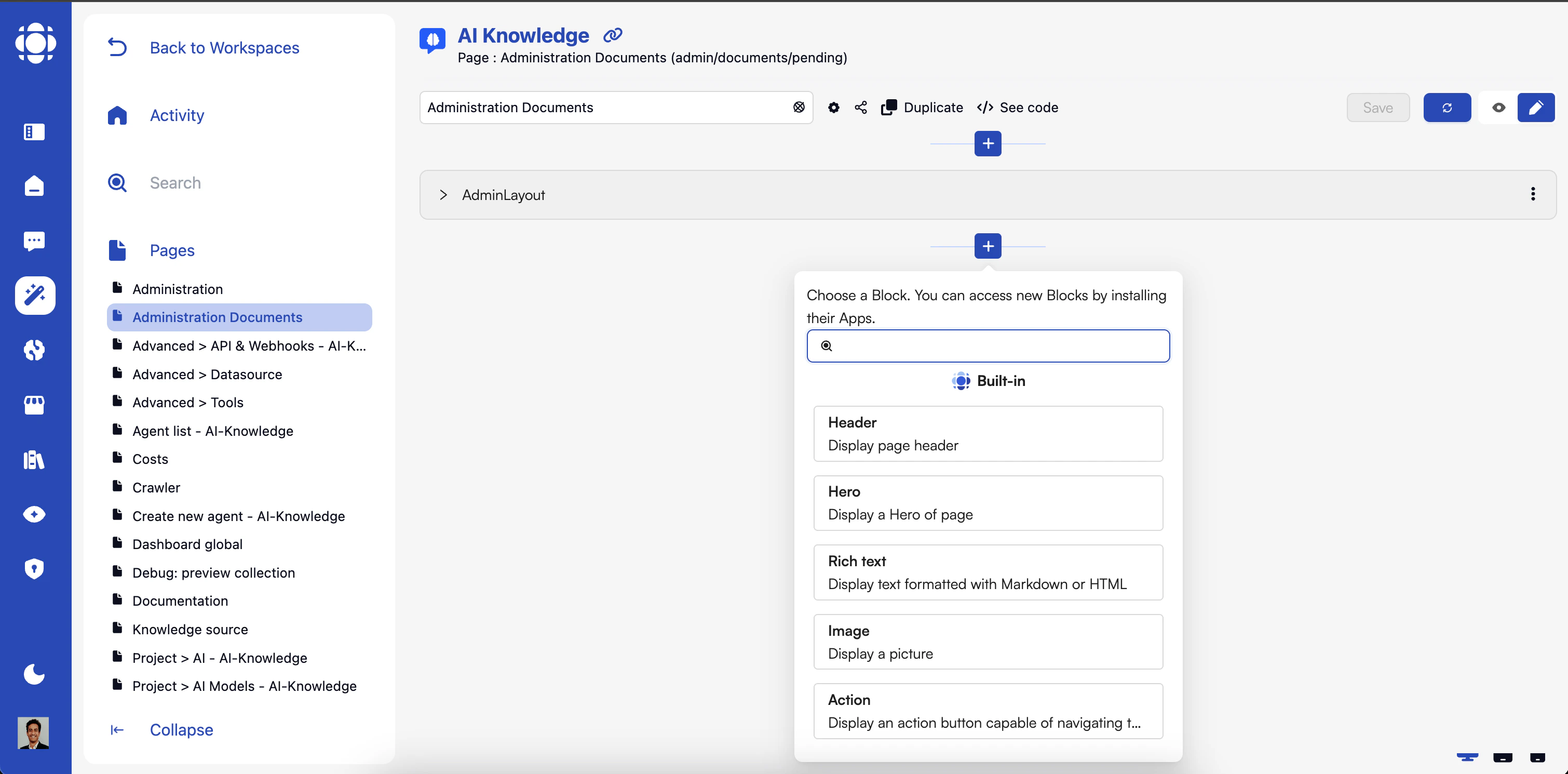
  <img src="https://mintcdn.com/prismeai-legacy/jdOgS9ouJy0zTcFo/images/pages.png?fit=max&auto=format&n=jdOgS9ouJy0zTcFo&q=85&s=9f5f9b079e4cfd51d231eb9b1b91daad" alt="AI Builder Pages Interface" width="3020" height="1490" data-path="images/pages.png" />
</Frame>

Pages in AI Builder are the containers where blocks come together to create complete user interfaces. They define the structure, layout, and navigation of your application, providing the environments where users interact with your AI solutions.

## Understanding Pages

<Tabs>
  <Tab title="What are Pages?">
    Pages are complete views composed of blocks and define:

    * **Structure**: The organization and hierarchy of content
    * **Layout**: How blocks are arranged visually
    * **Navigation**: How users move between different views
    * **Interaction Model**: How users engage with the interface
    * **Access Control**: Who can view and interact with the page

    Each page has a unique URL within your workspace and can be configured for various use cases.
  </Tab>

  <Tab title="Page Types">
    AI Builder supports several page types for different purposes:

    * **Standard Pages**: General-purpose interfaces
    * **\_doc Pages**: Documentation pages with special formatting
    * **index Pages**: Home/landing pages for workspaces
    * **401/404 Pages**: Custom error and authentication pages
    * **Template Pages**: Reusable page structures

    Different page types have specific behaviors and optimizations.
  </Tab>

  <Tab title="Page Architecture">
    Pages in AI Builder are built on modern web technologies:

    * **Next.js**: For server-side rendering and optimal performance
    * **React**: For component-based UI development
    * **Event System**: For communication between components
    * **Responsive Design**: For cross-device compatibility

    This architecture ensures fast loading, SEO-friendly content, and interactive experiences.
  </Tab>
</Tabs>

## Working with Pages

<Steps>
  <Step title="Creating Pages">
    Start a new page through the AI Builder interface:

    To create a page:

    1. Navigate to the "Pages" folder in your workspace
    2. Click the "+" button to add a new page
    3. Choose a page type (standard, \_doc, etc.)
    4. Enter a unique slug for the page URL
    5. Provide a name and description

    The page slug becomes part of the URL: `https://[workspace-slug].pages.prisme.ai/[language]/[page-slug]`
  </Step>

  <Step title="Page Properties">
    Configure the basic properties of your page:

    Key properties include:

    * **Slug**: Unique identifier in the URL (technical name)
    * **Name**: Human-readable title displayed to users
    * **Description**: Short explanation of the page's purpose
    * **Access Control**: Public, private, or specific user access
    * **Language**: Default language for localization
    * **SEO Settings**: Title, description, and metadata for search engines
  </Step>

  <Step title="Adding Blocks">
    Populate your page with blocks to create the user interface:

    The process involves:

    1. Select from available blocks in the sidebar
    2. Drag blocks onto the page canvas
    3. Arrange blocks in the desired layout
    4. Configure block properties for this specific instance
    5. Create event connections between blocks

    Blocks can be nested, grouped, and arranged to create complex layouts.
  </Step>

  <Step title="Page Styling">
    Customize the visual appearance of your page:

    Styling options include:

    * **CSS Editor**: Write custom CSS for precise control
    * **Style Presets**: Apply predefined style combinations
    * **Dark/Light Mode**: Support different color schemes
    * **Typography Settings**: Control text appearance

    Proper styling creates a professional, branded appearance.
  </Step>

  <Step title="Event Configuration">
    Set up communication between blocks on the page:

    Event configuration includes:

    * Creating event flows between blocks
    * Setting up page-level events
    * Connecting blocks to backend automations
    * Handling user interactions
    * Managing data flow through the interface

    The event system creates interactive, dynamic experiences.
  </Step>

  <Step title="Testing & Preview">
    Validate your page before publishing:

    Testing options include:

    * **Live Preview**: See changes in real-time
    * **Device Preview**: Test on different screen sizes
    * **Event Monitoring**: Verify event flows work correctly
    * **User Testing**: Observe real users interacting with the page
    * **Accessibility Checking**: Ensure the page works for all users

    Thorough testing ensures a quality user experience.
  </Step>
</Steps>

## Page Features and Capabilities

<AccordionGroup>
  <Accordion title="Navigation Systems">
    Pages can include various navigation patterns using Blocks:

    * **Menu Systems**: Structured navigation between pages
    * **Breadcrumbs**: Show location in page hierarchy
    * **Tabs**: Organize content within a page
    * **Links**: Connect to other pages and external resources
    * **Routing**: Define URL patterns and parameters

    <Properties>
      <Property name="URL Structure" value="https://[workspace-slug].pages.prisme.ai/[language]/[page-slug]">
        Example: [https://my-workspace.pages.prisme.ai/en/customer-dashboard](https://my-workspace.pages.prisme.ai/en/customer-dashboard)
      </Property>

      <Property name="Query Parameters" value="Support for URL parameters to control page state">
        Example: ?view=details\&id=12345
      </Property>

      <Property name="Navigation State" value="Saved and restored across sessions">
        Features: Browser history integration, deep linking, state persistence
      </Property>
    </Properties>
  </Accordion>

  <Accordion title="Access Control">
    Pages support multiple access control models:

    * **Public Pages**: Accessible to anyone with the URL
    * **Private Pages**: Require authentication
    * **Role-Based Access**: Available to specific user roles
    * **Email-Based Access**: Shared with specific email addresses
    * **SSO Integration**: Enterprise authentication systems

    <Properties>
      <Property name="Authentication Methods" value="Multiple identity verification approaches">
        Supported: SSO, email/password, social login, JWT, API key
      </Property>

      <Property name="Authorization Rules" value="Fine-grained access control">
        Options: Role-based, attribute-based, explicit user lists
      </Property>

      <Property name="Access Inheritance" value="Hierarchical permission model">
        Behavior: Child resources inherit parent permissions by default
      </Property>
    </Properties>
  </Accordion>

  <Accordion title="Page Events">
    Pages can emit and listen for various events:

    * **Lifecycle Events**: Load, mount, unmount
    * **User Interaction Events**: Clicks, form submissions
    * **State Change Events**: Data updates, selection changes
    * **System Events**: Authentication, errors, notifications
    * **Custom Events**: Application-specific events

    <Properties>
      <Property name="Event Flow" value="Communication patterns between components">
        Patterns: Parent-child, sibling, cross-page, page-automation
      </Property>

      <Property name="Event Payload" value="Data transmitted with events">
        Structure: JSON objects with typed properties
      </Property>

      <Property name="Event Handling" value="Response to received events">
        Options: State updates, UI changes, automation triggers
      </Property>
    </Properties>
  </Accordion>

  <Accordion title="Localization">
    Pages support multi-language content:

    * **Text Translation**: Content in multiple languages
    * **Language Selection**: User-controlled language preference
    * **Content Adaptation**: Cultural and regional variations

    <Properties>
      <Property name="Language Path" value="URL segment indicating language">
        Example: /en/ for English, /fr/ for French
      </Property>

      <Property name="Translation System" value="How content is translated">
        Method: JSON file
      </Property>

      <Property name="Default Language" value="Fallback when preferred language is unavailable">
        Behavior: Configurable at workspace or page level
      </Property>
    </Properties>
  </Accordion>
</AccordionGroup>

## Page Integration with Automations

Pages connect with backend processes through the event system:

<Steps>
  <Step title="Event Triggers">
    Page components can trigger automations.

    Common triggers include:

    * Button clicks
    * Form submissions
    * Data selection
    * Page loading
  </Step>

  <Step title="Data Passing">
    Information flows between pages and automations.

    Data passing methods:

    * Event payloads with structured data
    * State variables and context
    * URL parameters and query strings
    * Session and user storage
  </Step>

  <Step title="Response Handling">
    Pages react to automation results

    Response handling patterns:

    * Update UI components with returned data
    * Display success/error messages
    * Navigate to new views based on results
  </Step>

  <Step title="Asynchronous Processing">
    Handle long-running operations gracefully.
    Asynchronous patterns:

    * Loading states during processing
    * Progress indicators for lengthy operations
    * Background processing with notifications
  </Step>
</Steps>

## Page Best Practices

<CardGroup cols={2}>
  <Card title="Responsive Design" icon="mobile-screen">
    <p>Ensure pages work on all devices:</p>

    <ul>
      <li>Test on multiple screen sizes</li>
      <li>Use flexible layouts</li>
      <li>Prioritize content for mobile</li>
      <li>Consider touch vs. mouse interactions</li>
    </ul>
  </Card>

  <Card title="Performance Focus" icon="gauge-high">
    <p>Optimize for speed and responsiveness:</p>

    <ul>
      <li>Minimize the number of blocks</li>
      <li>Use lazy loading where appropriate</li>
      <li>Optimize images and media</li>
      <li>Monitor and improve loading times</li>
    </ul>
  </Card>

  <Card title="Accessibility" icon="universal-access">
    <p>Create inclusive experiences for all users:</p>

    <ul>
      <li>Use semantic HTML structure</li>
      <li>Ensure keyboard navigation</li>
      <li>Maintain sufficient color contrast</li>
      <li>Add appropriate ARIA attributes</li>
    </ul>
  </Card>

  <Card title="Error Handling" icon="triangle-exclamation">
    <p>Design for when things go wrong:</p>

    <ul>
      <li>Provide clear error messages</li>
      <li>Offer recovery paths</li>
      <li>Preserve user input during errors</li>
      <li>Test error scenarios thoroughly</li>
    </ul>
  </Card>
</CardGroup>

## Next Steps

<CardGroup cols={2}>
  <Card title="Blocks" icon="puzzle-piece" href="/products/ai-builder/blocks">
    Learn more about the components that make up pages
  </Card>

  <Card title="Automations" icon="gears" href="/products/ai-builder/automations">
    Explore backend processes that power page functionality
  </Card>

  <Card title="Testing & Debugging" icon="vial" href="/products/ai-builder/testing-debugging">
    Learn how to validate and troubleshoot pages
  </Card>

  <Card title="Use Cases" icon="lightbulb" href="/products/ai-builder/use-cases">
    See examples of pages in real-world applications
  </Card>
</CardGroup>
